 CIPHERCUE
Attio integration
Connect CipherCue to Attio so active recommended plays appear in a shared Attio list linked to company records.
Admin setup
Connect Attio from the CipherCue settings area. Settings opens on the Notifications tab, so switch to Integrations before connecting Attio. You need a CipherCue user who can manage the workspace and access to the Attio workspace you want to connect.
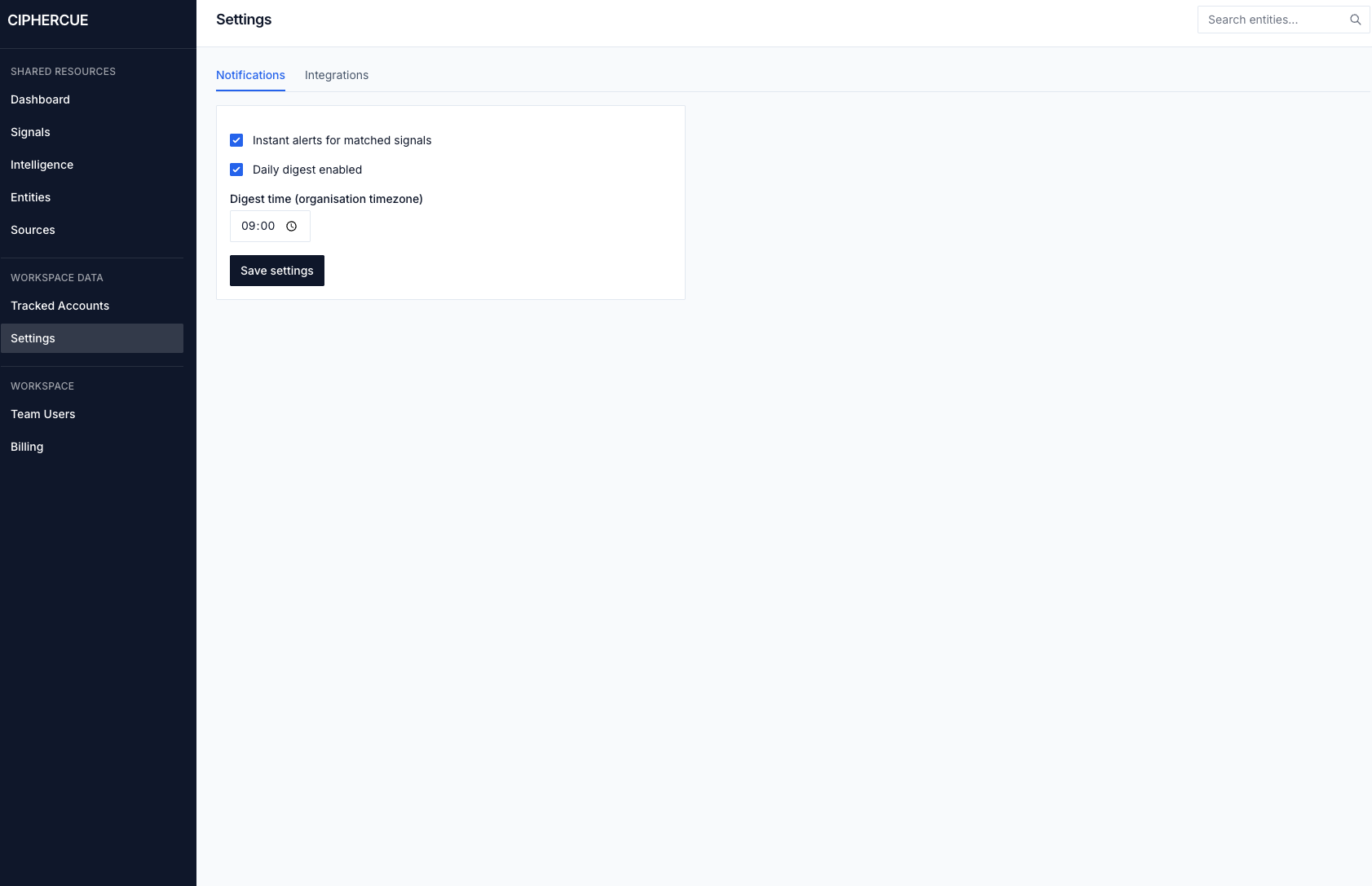
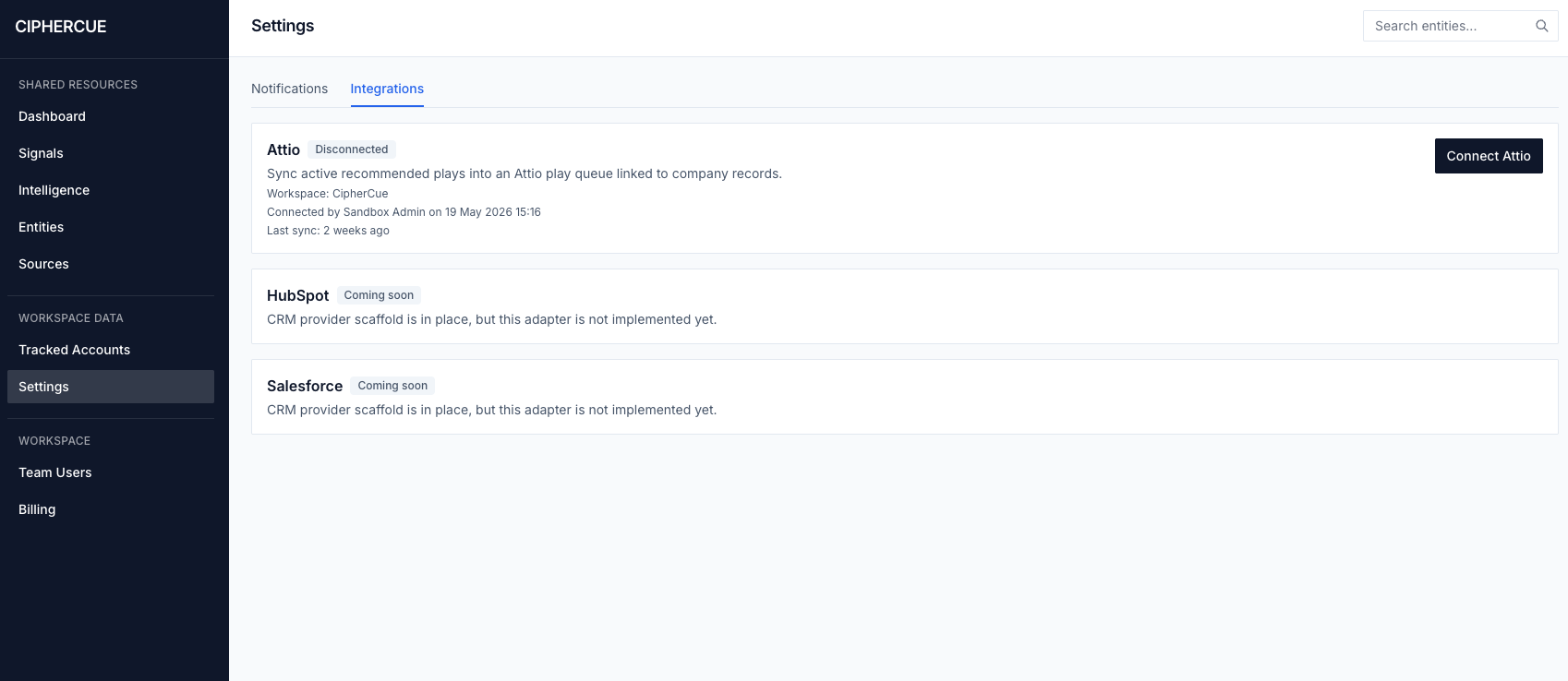
- Open Settings in CipherCue. If Notifications is selected, choose the Integrations tab.
- Choose Connect Attio.
- Approve the OAuth request in Attio and return to CipherCue.
- Confirm the Attio card shows Connected and the expected workspace name.
- Use Sync now to queue the first sync, or wait for the scheduled sync.
The integration is workspace-specific. Connecting Attio for one CipherCue workspace does not connect it for another workspace.
Attio view setup
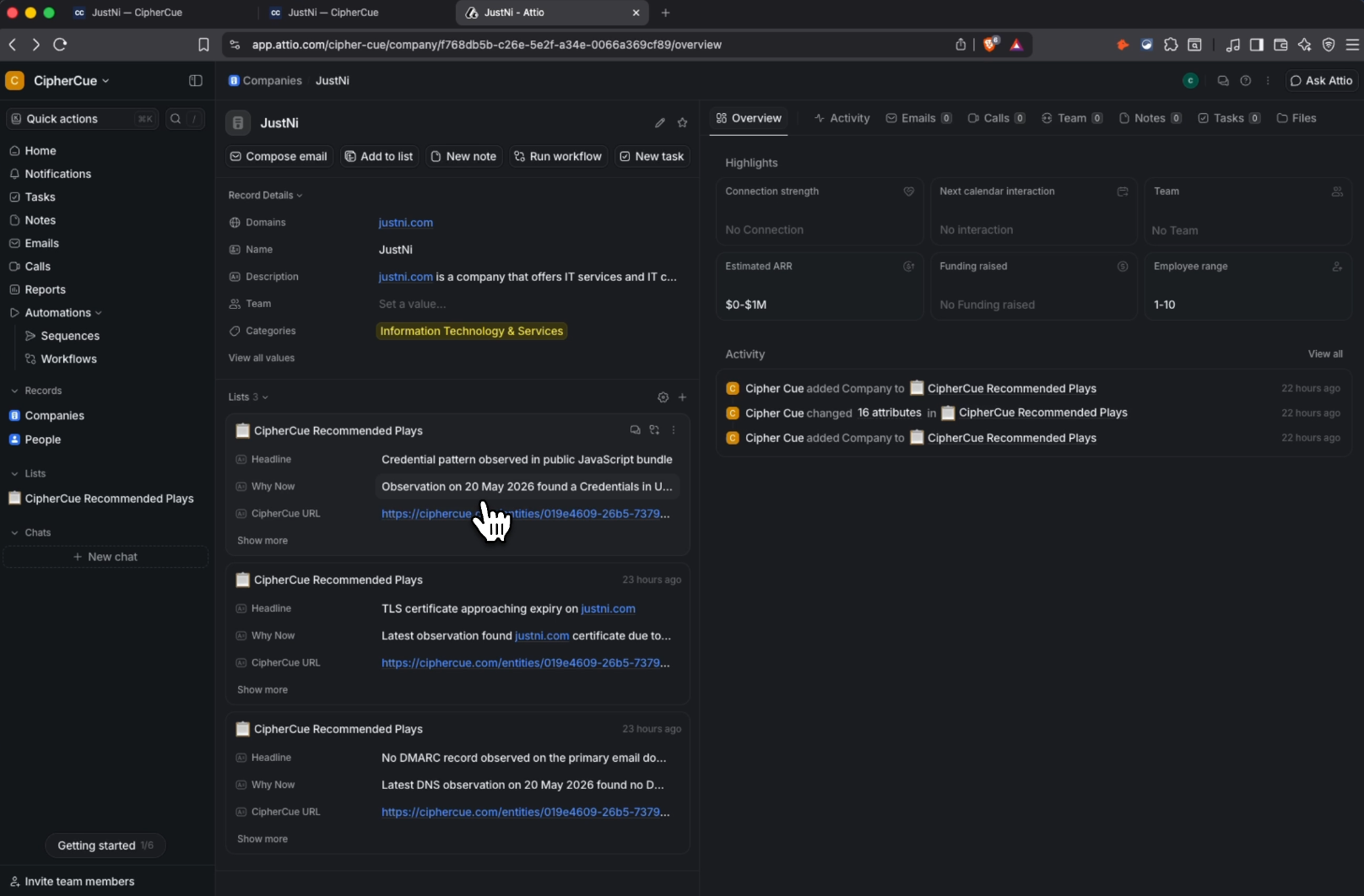
On first sync, CipherCue creates or reuses an Attio list named CipherCue Recommended Plays. The list is linked to Attio companies and receives one entry per active play.
Attio initially shows new lists with only the linked company column. Add these columns to make the list useful for reps:
| Column | Purpose |
|---|---|
| Headline | The short play summary. |
| Wedge | The signal category, such as KEV, email security, TLS, or tech stack change. |
| Priority | The sort field for the queue. Sort descending by default. |
| Why Now | The explanation of the observed change or trigger. |
| Likely Buyer | The suggested buyer persona for the conversation. |
| Suggested Buyer Names | Matched contacts on the company when CipherCue has them. |
After the view looks right in Attio, return to CipherCue and choose Mark setup complete. This only hides the reminder; it does not change sync behavior.
Tracked accounts drive the sync
CipherCue syncs recommended plays for accounts your workspace is tracking. When CipherCue observes meaningful changes on those tracked accounts, active plays are created or updated in CipherCue and then pushed into Attio on the next sync.
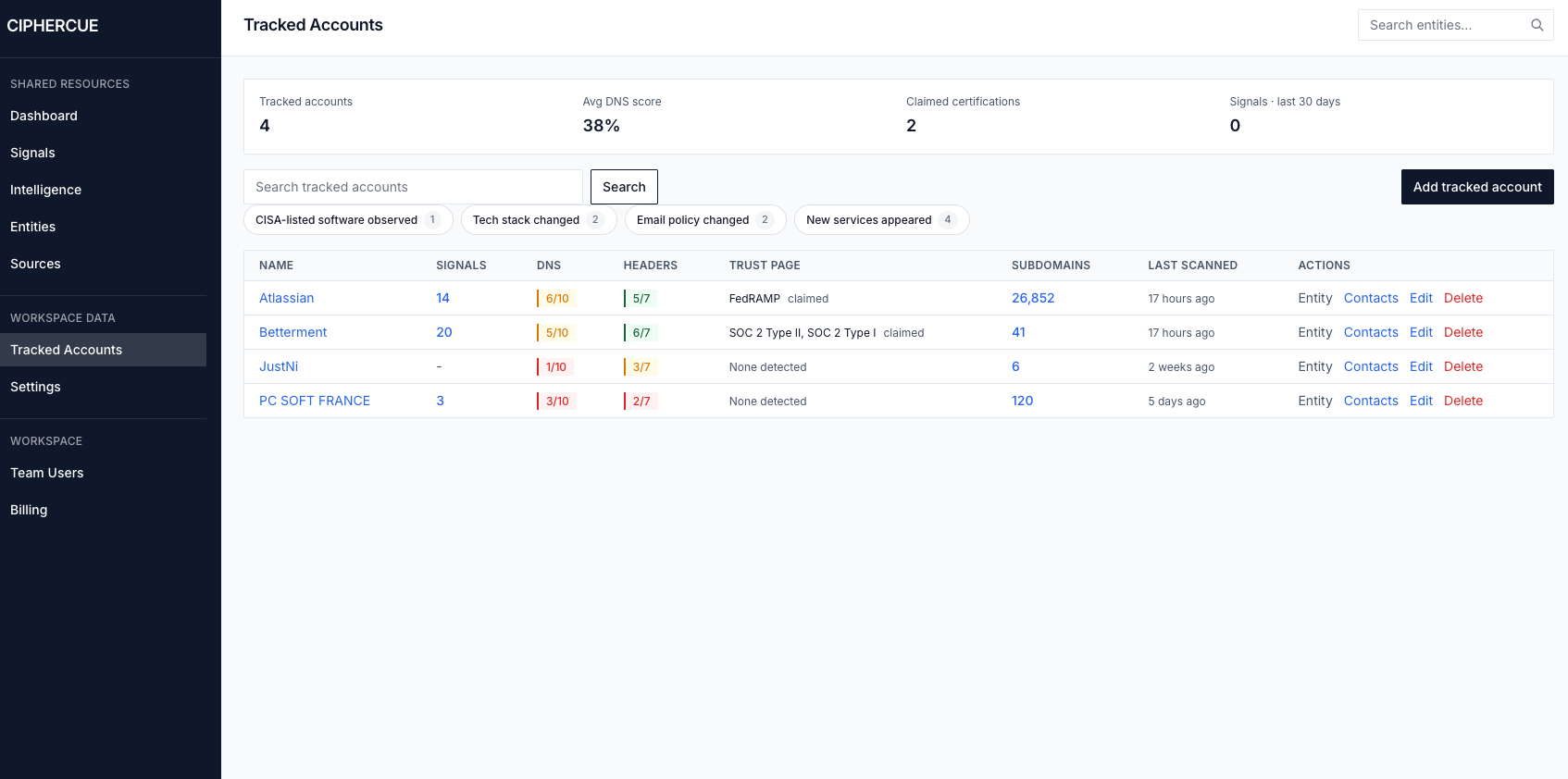
- Tracked accounts define the companies CipherCue watches for sales-relevant observations.
- Signal counts and change filters help show which accounts have recent observations worth reviewing.
- Recommended plays generated from those observations are the records CipherCue sends to Attio.
User flow
Sales users work from the Attio play list as a prioritized queue. Each synced row is connected to the Attio company record, so reps can move from the play to the account context without copying data between tools.
What CipherCue syncs
- Active recommended plays for accounts tracked in the connected CipherCue workspace.
- Company records matched or created by company domain.
- Play fields including status, wedge, play key, headline, why now, likely buyer, opening line, priority, generated date, CipherCue URL, suggested buyers, and evidence summary.
How reps use it
- Open the CipherCue Recommended Plays list in Attio.
- Sort by Priority descending.
- Read Headline and Why Now to understand the trigger.
- Use Likely Buyer, Suggested Buyer Names, and Opening Line to prepare outreach.
- Open the CipherCue URL when deeper observation context is needed.
When a play is dismissed or superseded in CipherCue, the corresponding Attio row is updated rather than duplicated.
Troubleshooting
| Issue | What to check |
|---|---|
| Attio is unavailable or not configured | The Attio card can only connect when the environment has Attio OAuth configured and the provider is enabled. |
| No rows appear in Attio | Run Sync now, then confirm the workspace has active recommended plays with company domains. |
| The Attio list only shows a company column | Add the recommended columns manually in Attio. CipherCue cannot configure Attio views through the API. |
| A play does not sync | That play needs a company domain so CipherCue can match or create the Attio company record. |
| Attio-side data was cleared or repaired | Use Force resync in CipherCue. It clears stored remote links and pushes active plays again. |
Need to reconnect from scratch? Disconnect Attio from Settings, then Integrations, then connect the workspace again.